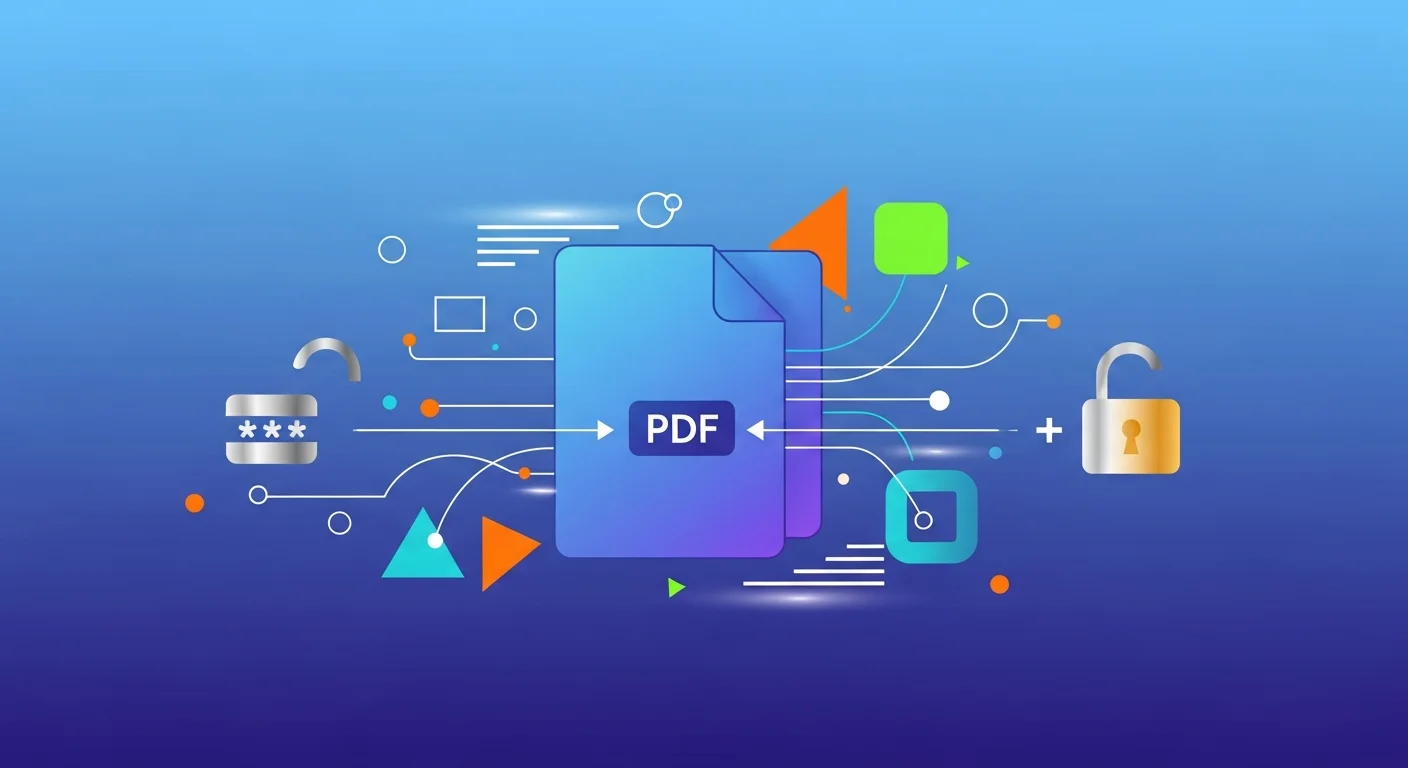
You've received a PDF — a bank statement, a contract, a shared report — and it's asking for a password you don't have. Or you have the password, but you're tired of entering it every time. Or the opposite: you need to lock a document before emailing it to a client.
PDF password management trips people up because there are two completely different types of PDF protection — and most people don't know which one they're dealing with.
Two Types of PDF Protection
1. Open Password (User Password)
Prevents anyone from opening the PDF without the correct password. You see the prompt the moment you try to open the file.
To remove it: You must know the password. Once the file is open, you can re-save it without protection.
2. Permissions Password (Owner Password)
Allows anyone to open the file, but restricts what they can do — printing, copying text, or editing. The file opens fine, but certain actions are blocked.
To remove it: This is what most "PDF unlock" tools do. Since the content is accessible, the restrictions can often be lifted without the owner password.
Remove a PDF Password
PDF Password Remover
Remove passwords and restrictions from your PDF files instantly and privately.
Add a Password to a PDF
PDF Password Protector
Add password encryption to secure your PDF files instantly and privately.
When to Lock (and When Not To)
Good reasons to password-protect a PDF:
- Sending financial documents, HR records, or contracts to external parties
- Restricting printing or redistribution of licensed content
- Protecting information until a specific recipient retrieves it
When it's unnecessary:
- Internal files in a secured shared drive — access is already controlled
- Public PDFs you want people to share freely
- Long-term archives — passwords make future access harder
What Happens to PDF Security During Merging or Converting
- Merging: Password-protected PDFs must be unlocked first. The output file inherits no password.
- Converting to Word: Locked PDFs can't be converted directly — unlock first.
- Printing to PDF: Printing via the OS print dialog often creates an unlocked copy — this is a built-in system behavior.
Privacy: Why These Tools Should Run Locally
The reason a PDF is password-protected is usually because it contains sensitive content — which makes uploading it to a cloud tool particularly risky.
- EU (GDPR): Bank statements, legal agreements, and HR documents containing personal data cannot be sent to unverified processors without proper legal basis.
- US (HIPAA): Medical records and insurance documents are strictly regulated.
- India (DPDP Act): Financial and personal documents must be handled with appropriate safeguards.
FluxToolkit's PDF password tools run entirely in your browser. Your document is processed locally — it never leaves your device.
Frequently Asked Questions
Can I remove a PDF password if I've forgotten it?
If you've forgotten the open (user) password, recovery is extremely difficult. For owner/permissions passwords that restrict printing and copying, those can often be removed without the password since the file content itself is accessible.
Is removing a PDF password legal?
For documents you own or have legitimate access to — your own bank statements, contracts you signed — yes. It becomes a legal issue only if you're circumventing DRM on content you don't have rights to.
What's the strongest PDF encryption available?
AES-256 (used in PDF 1.7+) is the current standard. Combined with a strong random password, it's extremely resistant to brute-force attacks.
Does adding a password change the file content?
No. Password protection adds an encryption wrapper around the content without modifying text, images, or layout.
Does FluxToolkit store my PDF files?
No. Both tools run entirely in your browser. Nothing is uploaded to our servers.
Cross-Platform PDF Password Compatibility
One important but often overlooked aspect of PDF security is that different software applications handle passwords differently. If you lock a PDF on one platform, you may run into unexpected behaviour when trying to open it on another.
Adobe Acrobat and Acrobat Reader
Adobe Acrobat is the reference implementation for the PDF specification, so it handles both user passwords (encryption) and owner passwords (permissions) exactly as described in the PDF standard. When you save a password-protected PDF in Acrobat, the resulting file should be readable in any other standards-compliant viewer — provided the password is entered correctly.
However, Acrobat's permissions system (restricting printing, editing, and copying) is enforced at the application level, not the OS level. This means the restrictions rely on compliant software to honour them. Acrobat and most enterprise PDF readers will enforce these restrictions, but some third-party tools will simply ignore them.
macOS Preview
Apple's built-in Preview application can open password-protected PDFs and can add a user password to any PDF file. What it cannot do is set granular permissions restrictions (owner passwords). If you open an owner-password-protected PDF in Preview, Preview will often display it without enforcing the restrictions — effectively ignoring them. This is a known limitation of Preview's implementation: it treats PDFs as open once the user password (if any) is satisfied.
One practical tip: if you use File → Export as PDF in Preview while the document is open, the exported PDF will typically be unencrypted — even if the original had a permissions password. This is a built-in OS behaviour and is not considered a security bypass for files you legitimately have access to.
LibreOffice
LibreOffice Draw can open and display most PDF files. When it comes to password protection, LibreOffice respects user passwords (it will prompt for the password if one is set) but, similar to Preview, it does not consistently enforce owner permission restrictions. If you export a PDF from LibreOffice, you can set an open password and a permission password via the export dialogue under Security options.
One known compatibility issue: PDFs created with AES-256 encryption (the strongest standard, used in PDF 1.7 and later) can sometimes be difficult to open in older LibreOffice versions (pre-7.x). If you need maximum compatibility across platforms, using AES-128 encryption is a safe middle ground that balances strong security with broad software support.
Browser-Based PDF Viewers
Modern browsers (Chrome, Firefox, Edge, Safari) include built-in PDF viewers. These viewers will prompt for a user password if one is set. However, they universally ignore owner permission restrictions — they will allow you to copy text, print, and take screenshots regardless of what restrictions were embedded in the PDF. This is by design: browser PDF viewers are read-only display engines, not security-enforcement layers.
Key takeaway: PDF owner password restrictions are a deterrent for casual use, not an absolute technical lock. The strongest protection for sensitive documents is a strong user (open) password combined with full AES-256 encryption — not a permissions restriction alone.